Farm Tasks and Reminders in the App
Tasks and reminders let you set up a repeating job once, such as morning feeding or a monthly vaccination, and have the app create each day's task and send a reminder. You see what needs doing on Home, and anyone on the job can tick it off.
Who it's for: farm admins and managers who plan the work, and staff who do it. Plan: all plans, with a schedule limit (Starter 5, Growth 10, Scale and Enterprise no limit). Time: about 4 minutes.
What you need first
- A farm account. Adding a batch is not required, but the jobs will usually be about one.
- Your team members added to the farm, if you want to assign people.
- An internet connection. The app does not work offline.
Step-by-step
Step 1: Open Schedules
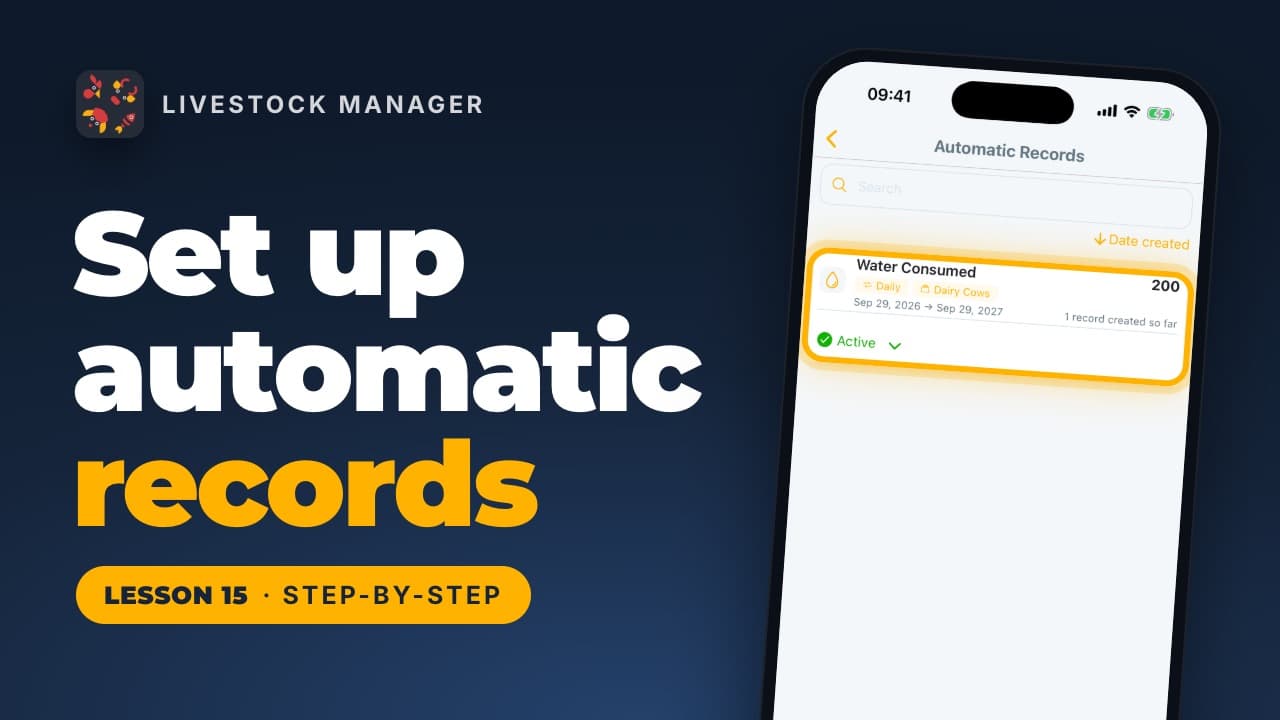
Go to More, then Planning & records, then Task Schedules. The list shows your repeating jobs. Tap New Schedule to start one. Admins and managers can also tap the Schedule Tasks button at the bottom right of the Tasks screen.
Step 2: Name the task and pick a category
Type a Task Name, for example "Deworm the goats". Then choose a Task Category. The choices include Feeding & Watering, Egg Collection, Vaccination & Medication, Cleaning & Sanitation and Maintenance & Repair. The category sets the task's icon.
Step 3: Assign people
Tap Assign To. The list shows the people on your farm. Tick one person or several. This step is optional. The assigned people show on the task card, so everyone can see who has the job.
Step 4: Set the date, frequency and reminders
Set the Start Date and Starts At time. Under Select Frequency, choose how often the job repeats: Occurs Once, Daily, Weekdays, Weekends, Weekly, Monthly, Every Two Months, Quarterly, Yearly or Custom interval. For Custom interval, enter the number of days in Repeat every (days). Switch on Show End Date if the job stops on a set day.
Under Reminder alerts, tick how many days before the job you want a reminder: 1, 2, 3, 7, 14 or 30. Add notes for the team in Task Description.
Step 5: Save the schedule
Tap Save changes. The app creates the coming tasks from your schedule and the screen closes. The phone may ask you to allow notifications. Say yes, or the reminders will not reach you.
Step 6: Check today, future and past tasks
On Home, open Today's Tasks or Upcoming Tasks and tap View All. The Tasks screen has three tabs: Today's Tasks, Future Tasks and Past Tasks. Each card shows the time, the job, the category and who it is assigned to. Use Past Tasks as a diary of jobs done, and to spot any that were missed.
Step 7: Tick a task off
On a task card, tap the status and choose Completed. Choose In Progress for a long job you have started. The other options are Pending, Paused and Cancelled. Everyone on the farm sees the new status, so nobody needs to phone to ask if it is done. Tap the card's menu and choose View Details to see who it is assigned to.
To pause or stop a whole schedule, open Task Schedules and change its status to Paused or Cancelled. To change the time, people or reminders, open the card's menu and choose Update.
Common mistakes
- Looking for a plain "New Task" button. The app has none. Use New Schedule (or Schedule Tasks as an admin or manager) and set the frequency to Occurs Once for a one-off job.
- Leaving Select Frequency empty. It has no default, so the form will not save until you pick one.
- Expecting reminders only for the assigned people. Reminders go to every farm member who has task reminders switched on. Assignment shows on the task card.
- Forgetting that paused and cancelled schedules still count towards your plan's schedule limit.
- Turning off notifications on the phone. The task still appears in the app, but the reminder will not arrive.
Frequently asked questions
How do I set a reminder for a one-time job on my farm?
Open New Schedule under Task Schedules and choose Occurs Once as the frequency. Set the date and time, and pick any Reminder alerts you want. The app has no separate one-off task button.
Who gets the task reminder notification?
Every member of the farm who has notifications on for task reminders gets the push, not only the people assigned to the task. The assigned names show on the task card.
Can my workers tick off tasks?
Yes. Admins, managers and staff can change a task's status, and everyone on the farm sees the change. Only admins and managers can delete a task or a schedule.
How many task schedules can I have?
The Starter plan allows 5 schedules per farm and Growth allows 10. Scale and Enterprise have no limit. Schedules you paused or cancelled still count towards the limit.
For a wider view of what to record each day, read the farm record keeping guide.