How to See Your Farm at a Glance
The Dashboard puts your whole farm on one screen: what it earned, what it cost, and what's in stock, for any period or any single batch.
Who it's for: anyone who wants the farm's numbers without digging through each section. Plan: every plan. Time: a glance, once it's set up the way you like it.
What you need first
- Nothing extra. The dashboard reads from the records, sales and expenses you already keep.
Step-by-step
Step 1: Open the dashboard
Home shows your shortcut tiles by default. Tap Dashboard to switch to your whole farm on one screen.
Step 2: The big numbers
At the top: net profit, income and costs for the last 30 days. Swipe across for your animals, eggs collected, milk and feed used. Below that, each trend is drawn day by day — egg production, milk, feed, weight and deaths, whatever you record.
Step 3: Choose what you see
Tap the date range, such as Last 90 Days, to change the period — this week, this month, or longer. Every number on the screen follows. Tap a batch, such as Dairy Cows, to see just that herd: its milk, its costs, its profit, instead of the whole farm.
Step 4: Stock, production, money
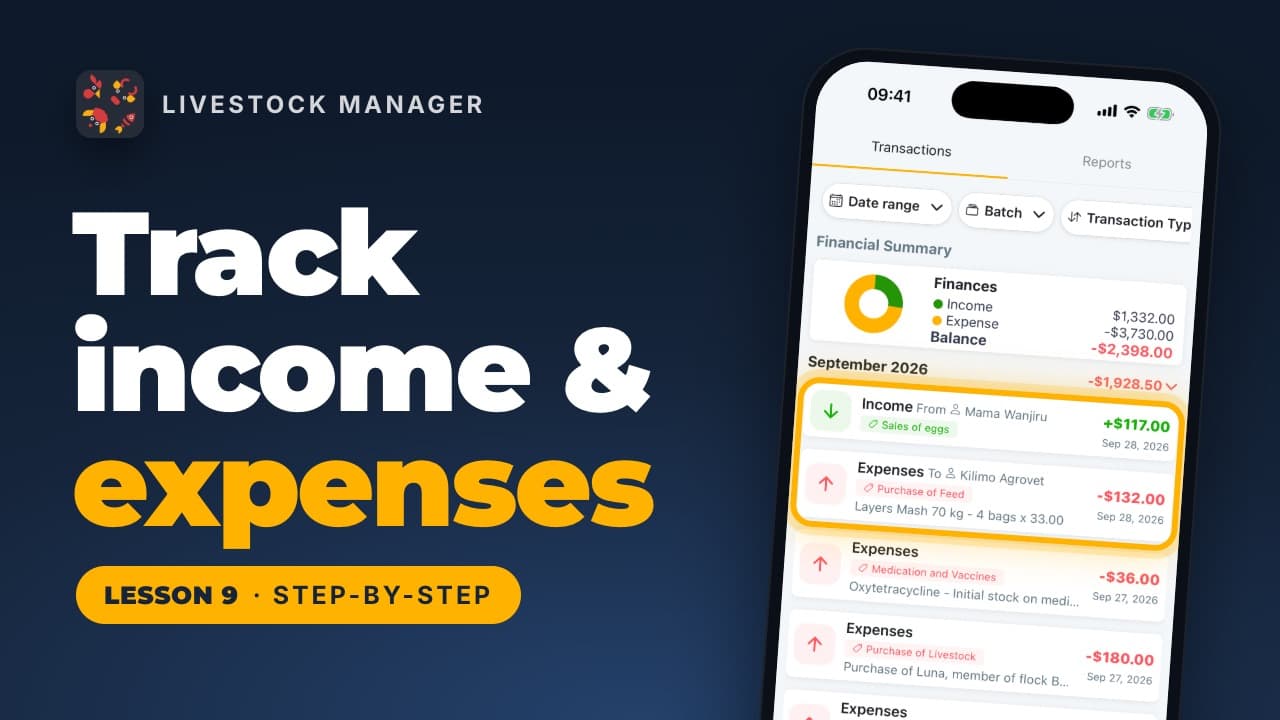
The tabs go deeper. Inventory shows what you have in stock — animals, feed, medicine, eggs, milk — and how long it will last; feed turns amber when it's running low. Production shows your laying rate and eggs a day, collected against sold or used. Finance shows money in and out for the period, and where it came from: milk, eggs, goats, manure.
Common mistakes
- Reading the 30-day default as "all time." Change the period if you want a longer view — the dashboard defaults to the last 30 days.
- Missing the batch filter. Left on "all batches," a struggling flock's numbers can hide inside a strong overall total. Filter to one batch to check it on its own.
- Not checking Inventory's days-left figure. Feed and medicine both show how long stock will last, not just how much is on hand — a useful early warning before you run out.
Frequently asked questions
How do I get to the dashboard?
On Home, tap Dashboard. Home remembers the view you chose, so it opens there again next time until you switch it back to tiles.
What period does the dashboard show by default?
The last 30 days. Tap the date range, such as Last 30 Days, to change it to a week, 90 days, or a longer period; every number on the screen updates to match.
Can I see the dashboard for just one batch?
Yes. Tap the batch filter and choose one, such as Dairy Cows, to see just that herd's milk, costs and profit instead of the whole farm.
What is on the Inventory tab?
What you have in stock — animals, feed, medicine, eggs, milk — and how long it will last. Feed turns amber when it is running low.