How to Digitize Your Farm Records
On this page
A paper cash book or an old spreadsheet is still a real record. Moving it into an app just makes it one you can search, total and share without flipping pages. This guide is for bringing what you already have into Livestock Manager, not for starting from a blank farm.
If you only need the mechanics of a single import, our lesson on importing records from photos covers the tap-by-tap steps. This guide is for planning the whole move, especially if you have more than a page or two to bring in.
Why bother moving old records into an app
A cash book answers "what happened." A digitized one also answers "how much did the goats earn this year," "is my feed cost rising," and "what's my balance right now" without you adding it up by hand. It's also one less thing that can be lost to rain, fire or a page torn out. None of that requires abandoning the notebook — keep writing in it if that's still your habit, and bring it in periodically.
What the app can read today
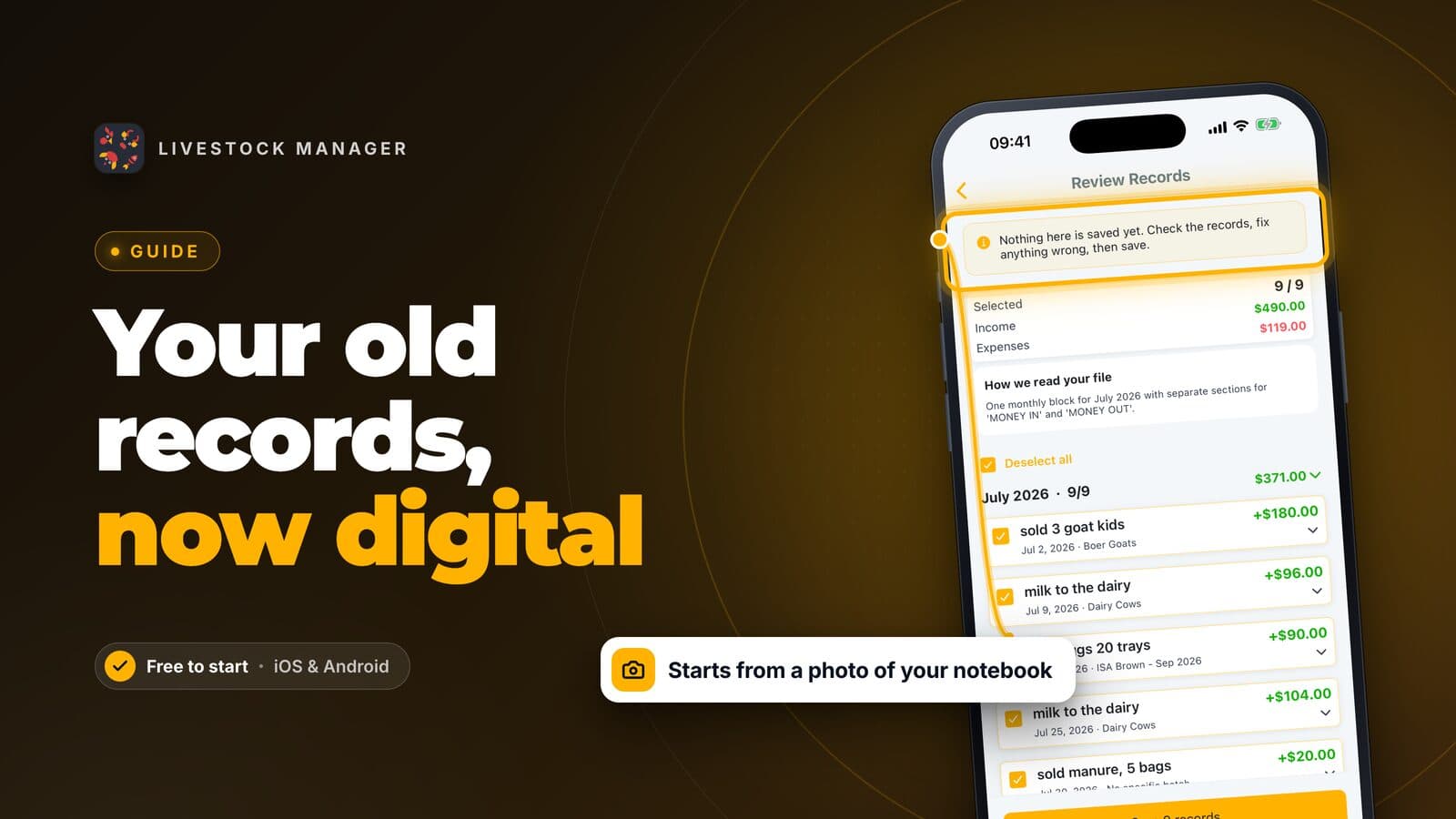
Import Records, under More then Planning & records, reads three kinds of files: a photo of a paper page, a PDF, and a spreadsheet. Whichever you use, the app reads it into draft transactions first — nothing is saved until you check them.
Today, imports cover money in and out: the same records you'd otherwise add under Finances. Eggs, health records, feed and other record types are not read by an import yet; if your backlog includes those, they still need to be typed in by hand, or spoken into the app — see our Speak or type lesson for the fastest way to do that for a small backlog.
Matching the method to your format
A paper cash book or notebook. Photograph one page at a time, flat and in good light, the same way you'd photograph a receipt. A page that covers a month, like a monthly cash book, reads as one import; a page a day works the same way, just in more imports.
A spreadsheet (Excel or Google Sheets). Upload the file directly under Import Records — you don't need to convert it to anything first, and there's no template to match. The app reads columns of dates, amounts and descriptions the way a person would.
Records from another app. There's no direct transfer between apps. Check whether the other app can export your transactions as a spreadsheet, CSV or PDF; if it can, import that file the same way as a spreadsheet. If it can only show records on screen, a screenshot or a printed PDF of each page works, though it's slower than a clean export.
Planning a big backlog
A single page imports in a minute or two. A year of monthly pages is a dozen small imports, not one large one — and that's by design, not a workaround:
- Reading a page uses your daily AI quota, the same one shared with chat-to-record and scan-transaction: 10 reads a day on the free plan, 15 on Growth, unlimited on Scale and Enterprise. A dozen months fits inside a day's quota on any plan; a much larger backlog doesn't, so it needs more than one day.
- Saving draws on your monthly transaction allowance: 30 a month on the free plan, unlimited on Growth and above. If one import has more records than you have room for that month, it saves what fits and tells you how many were skipped, rather than failing the whole import or blocking you. The skipped ones are still on the page — import them again next month, or upgrade if the backlog is large and ongoing.
With that in mind, work backward from today, one time period at a time: this month, then last month, and so on. Stop and check the results after each one rather than queuing up a stack of photos and reading them all at once — mismatched batches or an unclear photo are easier to fix one import at a time.
Checking the result
Every import stops at a review screen before anything is saved: how many records it found, the totals in and out, and a short note on how it read the page. Open any record to fix the amount, date or batch. A record that looks clearly wrong is usually a photo problem — a shadow across a number, or a page that isn't flat — worth a clearer retake rather than a hand correction.
Once you're happy, save it. If you change your mind afterward, the whole import can be undone from the Import Records list. Our farm record keeping guide covers what to track from here on, once your backlog is in.
Frequently asked questions
Can Livestock Manager read my paper cash book?
Yes. Photograph a page under Import Records and the app reads it into draft transactions you check before saving. It reads money in and out; other record types still need to be entered by hand for now.
I keep my books in Excel or Google Sheets. Do I need to retype everything?
No. Upload the spreadsheet file the same way you would a photo, under Import Records, and the app reads it into draft transactions the same way.
Can I move my records straight from another farm app?
There is no direct app-to-app transfer. If the other app can export a spreadsheet, PDF or CSV of your transactions, import that file the same way as a spreadsheet. If it can only show records on screen, a screenshot or a printed PDF of each page works too.
How long does digitizing a year of records take?
In file time, minutes: each import takes a minute or two to read, plus a few to check it. In practice, spread it across more than one day if you have many months to bring in - see the plan above for why.