How to Import Farm Records from Photos
Import Records reads a spreadsheet, a PDF, or a photo of your notebook, and turns it into draft transactions you check before anything is saved.
Who it's for: anyone with money records already written down somewhere other than the app. Plan: every plan, bounded by your daily AI quota and monthly transaction allowance. Time: a minute or two per file, plus a few minutes to check the results.
If you're moving a whole stack of old notebooks or a full year of spreadsheets, our guide to digitizing your farm records covers planning that out; this lesson covers one import.
What you need first
- A spreadsheet, a PDF, or a photo of the paper you're importing from.
- A farm admin, manager or accountant login. Only they can start an import.
Step-by-step
Step 1: Start an import
On the Home screen, tap More, then Planning & records, then Import Records. Every import you've made is kept here. Tap New import.
Step 2: Choose your file
Money in and out is what the app reads today. Tap Choose your file — a spreadsheet, a PDF, or a photo of your notebook. Take a photo now, or tap Choose from gallery to pick one you already took. Add a note if the page is unusual, then tap Read my records.
Step 3: Check what we read
The app reads the page and matches entries to your batches — a minute or two. The review screen shows how many records it found, the totals in and out, and a short note on how it read your page. Open any record to fix the amount, date or batch. Nothing is saved yet.
Step 4: Save them
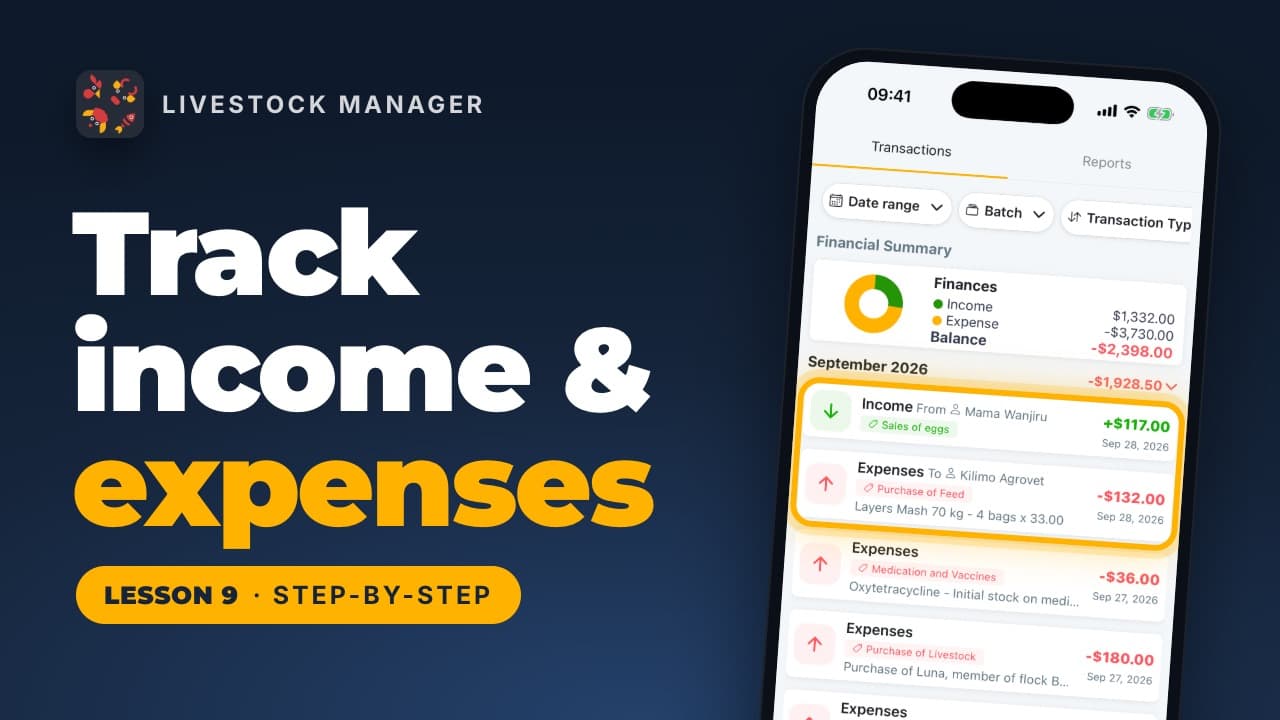
All correct? Tap Save records. They land in Finances with your other transactions, in your own words — "sold manure, 5 bags" reads exactly as you wrote it, not translated into a category you didn't use. Changed your mind? The whole import can be undone from the Import Records list.
Common mistakes
- Expecting every record type to import. Only money in and out is supported today; eggs, health and other record types still need to be entered by hand.
- Saving without checking a page's note. The "how we read your page" note flags anything unusual about the layout — worth a glance before you save.
- Importing more than your plan's room for the month. If an import has more records than your remaining monthly transaction allowance, it saves what fits and tells you how many were skipped rather than failing the whole import — see our digitizing guide for planning a big import around this.
Frequently asked questions
What kinds of records can I import today?
Money in and out — the same records you'd otherwise add under Finances. Other record types, such as eggs or health records, are not read by imports yet.
What files can I use?
A spreadsheet, a PDF, or a photo of a paper notebook or cash book. Take the photo in the app or pick one you already took.
Is anything saved before I review it?
No. The app reads the file into draft records first. You can open any of them to fix the amount, date or batch before you save anything.
Is there a limit on how much I can import?
Reading a page uses the same daily AI quota as chat-to-record and scan-transaction: 10 reads a day on the free plan, 15 on Growth, unlimited on Scale and Enterprise. Saving draws on your farm's monthly transaction allowance; if an import has more records than you have room for, it saves what fits and tells you how many were skipped, rather than failing the whole import.