How to Breed Your Animals in the App
A breeding project follows one mating from the day it happens to the day the young are born and named — with the due date, task reminders and pedigree done for you.
Who it's for: goats, sheep, cattle and other animals you breed deliberately, with recorded parents. Plan: every plan, with a limit on projects at once. Time: a few minutes to start; the project runs itself until birth.
What you need first
- The mother and father as animal profiles in your batches, so the app can link the pedigree.
- The date they were mated, or as close as you can estimate.
- A farm admin or manager login to start and manage projects.
Step-by-step
Step 1: Find Breeding
On the Home screen, tap More, then Planning & records. Breeding is the first item. Tap New Project.
Step 2: Start a project
Give the project a name you'll recognize later. Choose the animal — the form adapts to what you pick. Then pick the mother and father from your batches, and the current status, such as Mated. The due date is worked out for you from there: about 150 days for a goat. Turn on the task schedule if you want a ready-made plan of check-ups, then tap Save and exit.
Step 3: Follow the pregnancy
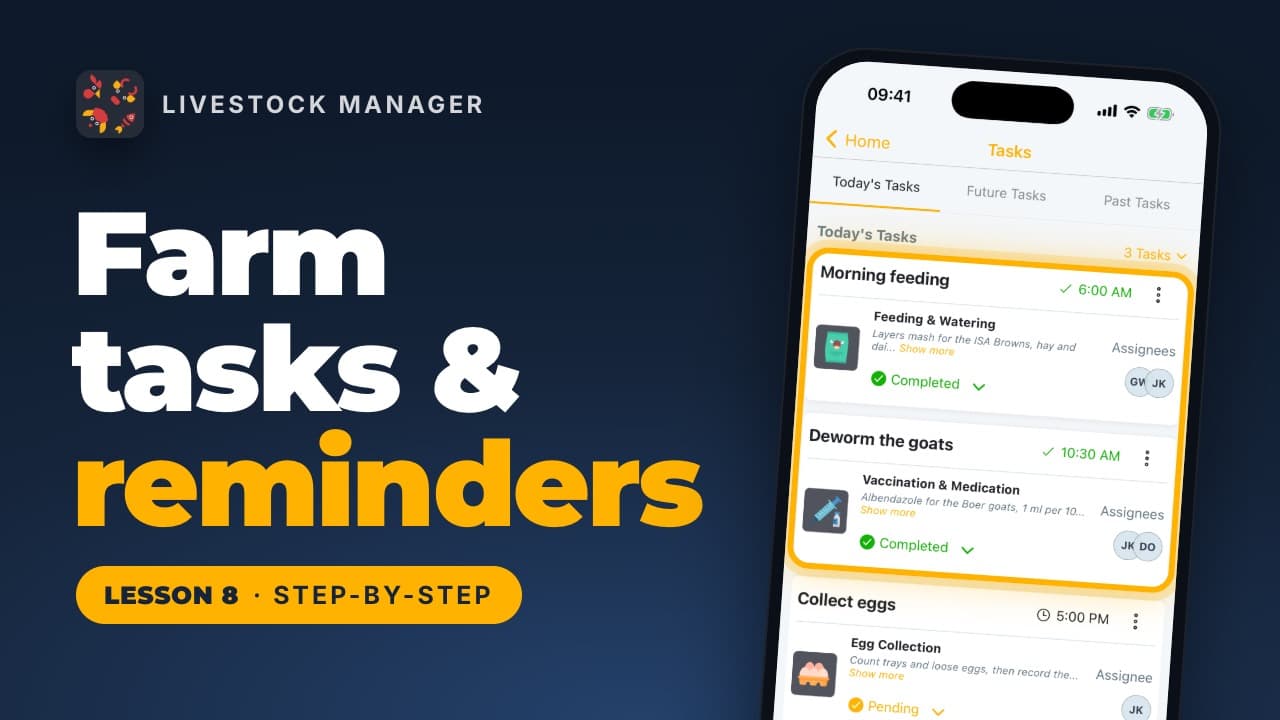
The project now counts down to the birth. If you turned on the task schedule, your Upcoming Tasks tab lists what's next — confirming the pregnancy, feeding her more, getting the kidding pen ready. Use the Events tab to keep a diary as things happen: a heat, the mating itself, a pregnancy check, each with its own date and an optional note.
Step 4: Record the birth
When the birth happens, open the project's menu and tap Record Results. Enter how many were born alive and how many were lost. Tap Save and Close Project — the newborns join the mother's batch, one profile each.
Step 5: Meet the kids
The app now asks you to name each newborn in turn. Their mother and father are already filled in from the project, so tap Save & Next for each one until you reach the last, then Save & Finish. Open any of them from their batch and their profile already knows their parents — their pedigree starts here.
Common mistakes
- Starting the project after the birth. The due date, task schedule and pedigree all come from starting the project at mating. Record the mating as soon as it happens, even if you only confirm the pregnancy later.
- Skipping the father. Without both parents recorded, the newborns' pedigree is incomplete from day one.
- Forgetting to record results. A project with no results recorded never creates the newborns' profiles or closes itself.
Frequently asked questions
How does the app know the due date?
From the animal type and the date you record as Mated: about 150 days for a goat, for example. It updates the project's countdown automatically.
How many breeding projects can I run?
1 at a time on the free plan, 5 on Growth, 20 on Scale, and unlimited on Enterprise. New Project opens the plans screen once you reach your limit.
What happens to the newborns after I record results?
Each one joins their mother's batch as its own profile, with their parents already filled in, so their pedigree starts from their first day.
Do I have to turn on the task schedule?
No, it's optional. Turning it on adds a ready-made plan of check-ups, such as confirming the pregnancy and getting the kidding pen ready, as tasks you can tick off.